
Pet feeder voice recorder troubleshooting should start with one practical question: is the feeder failing to record, failing to play, or playing audio the pet ignores? Those are different problems. A voice message depends on the app, microphone permission, speaker, firmware, power, WiFi, schedule trigger, volume, and the pet’s actual response to sound at mealtime.
For homes using app-based feeding, a smart automatic pet feeder with app control works best when the voice feature supports the schedule instead of replacing it. The meal should still dispense correctly even if the voice message is quiet, delayed, or ignored.
Direct Answer: Pet Feeder Voice Recorder Troubleshooting
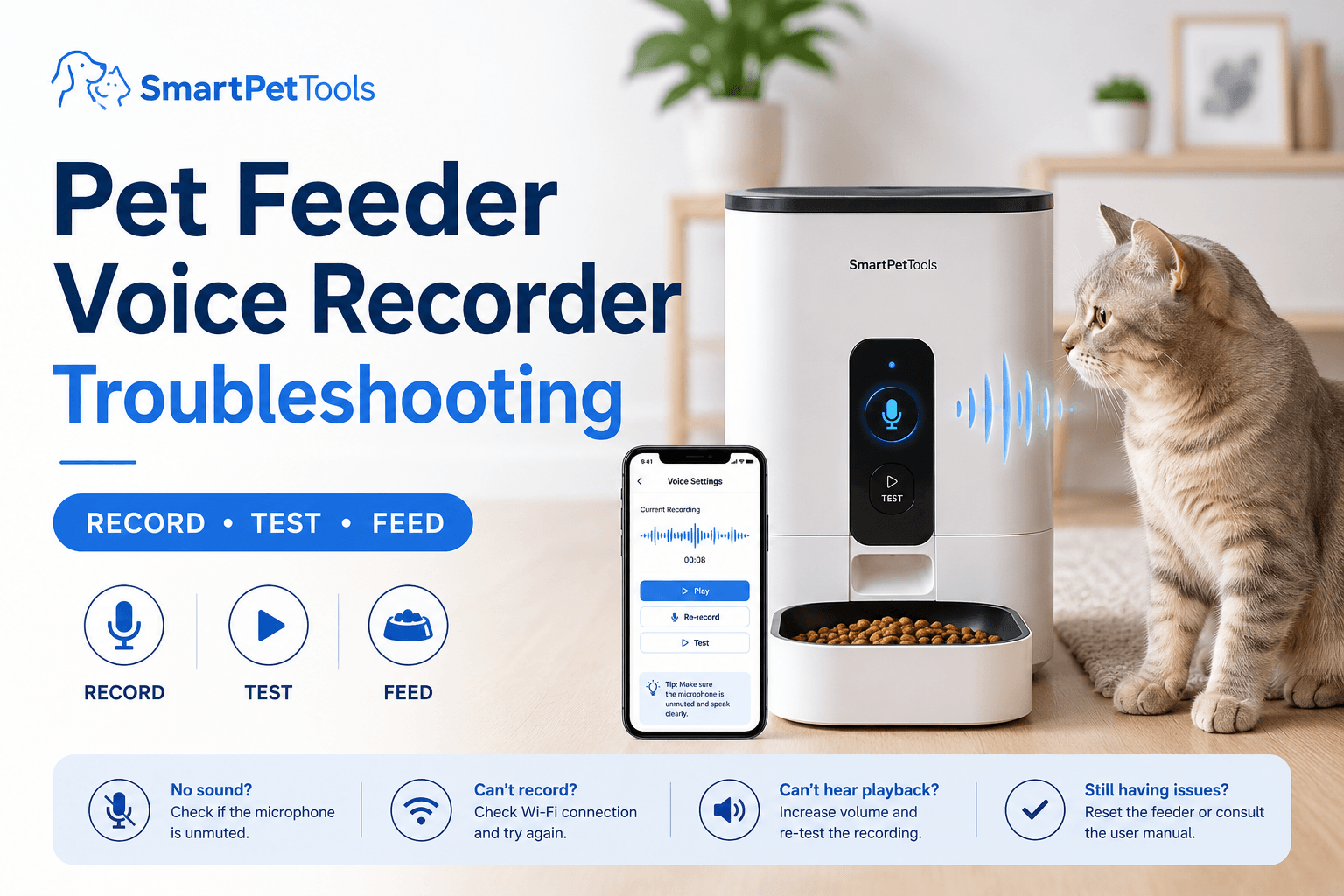
Pet feeder voice recorder troubleshooting means checking app microphone permission, recording length, saved message status, feeder volume, speaker blockage, power, WiFi connection, schedule settings, firmware version, app update status, and whether the voice message plays during a manual dispense and a scheduled meal. The safest fix is to record a short clear message, save it properly, test playback near the feeder, confirm the meal schedule, and restart or update only after verifying power and connection.
The biggest mistake is assuming the voice recorder controls feeding. It usually does not. The voice message is a cue. The feeding mechanism, schedule, portion calibration, and power system still control the actual meal. Good pet feeder voice recorder troubleshooting separates audio problems from dispensing problems.
Why This Happens
Voice recorder problems happen because the feature sits between phone software and feeder hardware. The phone records audio. The app stores or sends the message. The feeder saves or receives it. The speaker plays it. The schedule decides when it should trigger. Any weak point in that chain can make the voice message fail.
The FTC’s guidance on securing internet-connected devices at home recommends keeping connected devices and apps updated and using available security features. That matters for feeders with audio, cameras, accounts, and shared app access because troubleshooting should not weaken privacy or account control.
A voice feature also fails in non-technical ways. The message may be too long, too soft, too noisy, too emotional, or too inconsistent. The pet may not recognize it as a meal cue. A feeder can play the message correctly while the pet still ignores it.
What To Do First
Start with a basic playback test. Stand near the feeder, open the app, record a short message, save it, and trigger a manual test if the model supports that function. Use a calm phrase such as “Dinner time” or “Food is ready.” Keep the recording short and clear.
Then test the scheduled meal. Some feeders play the voice message only during scheduled dispensing, not during every manual feed. Others play during both. The owner needs to know which behavior applies before calling the feature broken.
Use how to use a smart pet feeder for full setup discipline. A pet feeder voice recorder troubleshooting routine should happen after the feeder is paired, scheduled, powered, and dispensing correctly.
The Feeding Loop Behind Voice Message Problems
The feeding loop starts when the owner records a voice message and expects the pet to come immediately. The feeder plays the sound. The pet does not respond. The owner opens the app, calls the pet manually, presses extra feed, or adds treats to “teach” the sound.
Now the pet learns that confusion around the feeder can produce extra food or extra attention. The voice message becomes part of a begging loop instead of a clean meal cue.
Better pet feeder voice recorder troubleshooting keeps the cue boring. The message plays once. The meal dispenses. The pet eats. No extra snacks, no repeated app tapping, and no dramatic owner reaction if the pet takes a few minutes to approach.
The Emotional Trigger Owners Miss
The emotional trigger is reassurance. Owners like voice recorders because they feel present when they are not home. That emotional value is real, but it can lead to overuse. A pet does not need a long emotional recording before every meal.
Most pets respond better to consistency than sentiment. A short, repeatable cue is easier to learn than a different message every week. Loud, excited, or distressed recordings can also make some pets hesitate around the feeder.
Use scientific pet feeding schedule to keep meals predictable. The voice message should support the schedule, not become the center of the routine.
The Addiction Mechanism
The addiction mechanism is audio-triggered reward. If the pet hears the feeder voice and food appears every time, the sound becomes a strong cue. That is useful when controlled. It becomes a problem when owners repeatedly test the voice feature with extra food.
A cat may begin waiting near the feeder whenever the owner opens the app. A dog may bark when it hears the speaker. The behavior is not caused by the recorder alone. It is caused by repeated pairing between sound, attention, and food.
A controlled pet feeder voice recorder troubleshooting plan limits testing. Use small test portions when needed, record the tests, and avoid turning the speaker into a snack button.
Problem 1: The App Will Not Record
If the app will not record, check phone microphone permission first. On most phones, apps need explicit microphone access before they can capture audio. If permission is denied, the feeder app may show a blank recording, fail to save, or record silence.
Check phone privacy settings, app permissions, mute mode, connected Bluetooth devices, and whether another app is using the microphone. Restart the app after changing permission. Then record a short message again.
The FCC’s online safety guidance encourages users to manage accounts, privacy, and device access carefully. For feeder apps, microphone access should be granted only to the correct app and reviewed when shared phones or pet sitters are involved.
Problem 2: The Recording Saves but Plays Silence
If the recording saves but plays silence, the microphone may not have captured audio, the message may have been recorded too quietly, the phone may have used the wrong input device, or the feeder volume may be too low.
Record again with the phone close to your mouth in a quiet room. Disconnect Bluetooth earbuds or speakers during recording. Keep the phrase short. Save it. Then test playback at the feeder.
If silence continues, test whether the feeder makes any other sound, such as button tones, startup sounds, or app-triggered chimes. If the speaker produces no sound at all, the issue may be speaker hardware, firmware, power, or device settings rather than the recorded file.
Problem 3: The Speaker Is Too Quiet
A quiet feeder voice can come from low app volume, low feeder volume, blocked speaker holes, background noise in the recording, or a feeder placed in a noisy room. Kitchens, laundry areas, garages, and rooms with fans can mask small speakers.
Move close to the feeder and test playback. Clean around the speaker opening with a dry soft cloth. Do not spray liquid into speaker holes. Re-record in a quieter room using a clear voice. Avoid long phrases because some feeders compress or limit audio quality.
Use smart feeder placement. Placement affects not only pet comfort and WiFi, but also whether the pet can hear the meal cue clearly.
Problem 4: The Voice Message Sounds Distorted
Distorted audio usually comes from recording too loudly, standing too close to the phone microphone, background noise, app compression, speaker vibration, or debris near the speaker. A feeder speaker is not a music speaker. It works best with a short clear cue.
Record at normal speaking volume. Keep the phone several inches away. Avoid echoes, fans, television sound, children shouting, or barking in the background. Test again with one short phrase.
If distortion appears only after cleaning, check whether moisture entered the speaker area. A feeder should never be sprayed directly around speaker holes, ports, buttons, or the motor base.
Problem 5: The Voice Plays Manually but Not on Schedule
If the voice plays during manual testing but not during scheduled meals, check the schedule settings. Some apps have a separate toggle for voice playback during feeding. Others require the message to be saved before the schedule is created.
Delete and rebuild one test schedule if needed. Set a small scheduled portion a few minutes ahead, confirm the voice option is enabled, and observe the actual meal cycle. Then remove the test meal and restore the normal feeding schedule.
Use smart pet feeder timezone setting if the voice seems to play at strange hours. A schedule-time error can look like a voice recorder failure.
Problem 6: The Pet Ignores the Voice Message
If the feeder plays the message but the pet ignores it, the audio system may be working. The issue is training. The pet has not learned that the sound predicts food, or the message is not consistent enough.
Use the same short phrase for every meal. Do not change voices or words daily. Let the scheduled meal follow the cue. Avoid adding extra treats or calling the pet repeatedly, or the pet will learn to wait for the owner instead of responding to the feeder.
For cats that hesitate around feeder sounds, use training cat to use feeder. Calm introduction matters more than volume.
Problem 7: The Feeder Is Offline
If the feeder is offline, the voice message may fail to update, sync, or trigger through the app. Some feeders keep stored schedules while offline, but remote changes may not reach the device. Others require connection for full audio management.
Check power first, then WiFi. Confirm the feeder is plugged in, the outlet works, and backup batteries are not dead. Then check router signal, password changes, app login, and whether the feeder is near a weak connection point.
Use smart pet feeder offline and pet feeder WiFi connection. A pet feeder voice recorder troubleshooting process should not blame the speaker before checking connection.
Problem 8: Firmware or App Update Changed Audio Behavior
Firmware and app updates can change audio prompts, notification behavior, recording limits, schedule settings, permissions, or saved-message behavior. If the voice recorder stopped working after an update, verify settings before assuming the speaker failed.
Open the app, check the recorded message, confirm permissions, review schedule voice toggles, and run a manual playback test. If the app has logged out or reset permissions, restore them deliberately.
Use smart feeder firmware update. Audio testing should be part of every major app or firmware change.
Problem 9: The Voice Message Is Delayed
A delayed voice message can happen when the feeder is reconnecting, the app command is slow, the device is processing a scheduled feed, or the network signal is weak. A short delay is different from a failure.
Test the feeder near the router, then test again in its final location. If delay improves near the router, the issue is connection quality. If delay appears only during scheduled meals, check the schedule, time zone, and firmware.
For mesh homes, use mesh network smart pet feeder connection. Voice sync and camera features need stable signal, not only a visible network name.
Problem 10: Voice Recorder Works but Feeding Fails
If the voice plays but no food drops, this is not mainly an audio problem. The feeder may be jammed, empty, miscalibrated, offline, low on power, or blocked at the chute. Do not keep replaying the voice message to solve a mechanical issue.
Check the food tank, chute, rotor, bowl, power, and app log. Run a small dispense test. If food is stuck, clear the food path before trusting the next meal.
Use pet feeder jammed and clean pet feeder rotor assembly. The pet should not hear a meal cue when no meal appears.
Power and Battery Checks
Weak power can affect audio. A feeder running on backup batteries may reduce certain functions depending on the model. Camera, WiFi, speaker, and app features can behave differently when the feeder is not on stable wall power.
Check the adapter, outlet, cable, battery compartment, and low-battery indicator. Do not troubleshoot voice recording for twenty minutes when the feeder is actually losing power.
Use automatic pet feeder battery light blinking and pet feeder with battery backup. A stable voice feature depends on a stable power path.
Privacy and Shared Access
A voice recorder may seem harmless, but it still involves app permissions, microphone access, saved audio, shared accounts, and sometimes camera or two-way audio. Owners should control who can change recordings, trigger manual feed, or access audio features.
Do not give full app control to every temporary helper if they only need feeding instructions. Remove pet sitter access when the care period ends. Keep account passwords strong and update the app through trusted sources.
Use smart device security. Safe pet feeder voice recorder troubleshooting fixes audio without weakening privacy.
Cleaning Around Speaker and Microphone Areas
Food dust can collect around speaker holes, buttons, ports, and seams. Cleaning helps, but liquid cleaning can damage audio parts. Use a dry soft cloth around speaker openings. Do not push crumbs deeper with sharp objects.
The FDA’s tips for safe handling pet food and treats emphasize clean food-contact surfaces and utensils. For feeders, that means bowls, trays, tanks, and chutes need washing, while electronic audio areas need dry careful cleaning.
Use clean smart pet feeder and pet feeder maintenance. A clean feeder should not become a wet speaker.
Common Failure Pattern
The most common failure pattern is recording a message once, never testing it, and assuming it will play forever. App updates, permission changes, schedule edits, device resets, and firmware changes can all affect audio behavior.
The second failure is using long emotional recordings. The feeder speaker may make them quiet, distorted, or inconsistent. A short phrase works better.
The third failure is confusing audio with feeding. If the voice plays but food does not drop, troubleshoot the dispenser. If food drops but the voice does not play, troubleshoot the recorder. If both fail, check power and connection first.
Real-World Impact
The real-world impact of a working voice recorder is cue consistency. The pet hears the same phrase before meals, the owner feels less absent, and the schedule gains a recognizable sound. This can support routine, especially for pets that respond well to predictable cues.
The impact of a broken or overused voice feature is confusion: pets waiting for a cue that never plays, owners sending manual food after failed tests, repeated app tapping, and feeder distrust. The voice feature should simplify mealtime, not create another failure point.
For owners who want audio plus visual verification, a smart WiFi pet feeder with camera may be more useful than voice alone. Use WiFi pet feeder with camera to understand the extra setup needs.
Can This Be Fixed?
Yes, most pet feeder voice recorder problems can be fixed with a structured reset. Check app microphone permission. Record a short message. Save it. Confirm volume. Test manual playback. Test scheduled playback. Check power. Check WiFi. Update the app and firmware only when the feeder can be tested afterward.
Run a seven-day voice check. Record whether the message plays, whether food drops, whether the pet responds, whether the feeder is online, whether the app logs the meal, and whether any manual feeds were added. If the pet ignores the voice but eats normally, the feature is not critical. If the feeder fails to dispense, fix the food path before the audio.
For feeder selection, start with the smart feeders collection. Choose based on schedule reliability, app control, speaker usefulness, camera need, cleaning access, power backup, and whether the voice feature actually supports the pet’s routine.
Who Should Walk Away and Who Should Use This
Walk away from treating voice recording as proof of feeding, repeatedly pressing manual feed during audio tests, spraying cleaner into speaker holes, sharing full app access casually, or using long emotional recordings that the pet cannot learn as a clear cue.
Use this pet feeder voice recorder troubleshooting guide if your feeder will not record, plays silence, sounds distorted, has low speaker volume, fails to play during scheduled meals, loses the saved message, goes offline, or plays the cue while food fails to dispense. It is especially useful for app-controlled feeders, camera feeders, early-morning cats, dogs trained to meal cues, and owners who travel or work shifts.
Cat owners can compare the cat feeders collection when quiet cues and small meals matter. Dog owners can compare the dog feeders collection when louder cues, larger bowls, and stable power are more important.
Mini FAQ
Why is my pet feeder voice recorder not working?
Your pet feeder voice recorder may not work because microphone permission is disabled, the recording was not saved, volume is low, the speaker is blocked, the feeder is offline, power is unstable, or firmware changed audio behavior.
Why does my feeder recording play silence?
Your feeder recording may play silence because the phone microphone did not capture audio, app permission was denied, a Bluetooth device captured the input, or the message was recorded too quietly.
Why does the voice play manually but not during meals?
The voice may play manually but not during meals if scheduled voice playback is disabled, the message was saved after the schedule was created, the schedule time is wrong, or the feeder requires a separate voice setting for automatic meals.
Can a voice recorder help train my pet to use the feeder?
A voice recorder can help when the same short cue plays consistently before food appears. It will not help if the owner changes the message often, overuses manual feed, or scares the pet with loud audio.
Does no voice mean the feeder will not dispense food?
No, no voice does not automatically mean the feeder will not dispense food. Audio and dispensing are separate functions on many feeders. Check the bowl, schedule, app log, and test dispense.
Should I reset the feeder if the voice recorder fails?
Reset only after checking microphone permission, saved message status, volume, power, WiFi, schedule settings, app updates, and firmware. A full reset can erase schedules, so verify simpler causes first.
The right answer to pet feeder voice recorder troubleshooting is controlled testing. Record short, save correctly, test playback, check schedule behavior, verify power and WiFi, and keep feeding decisions separate from audio problems. The voice message should be a clean meal cue, not a new reason to overfeed, panic, or distrust the feeder.