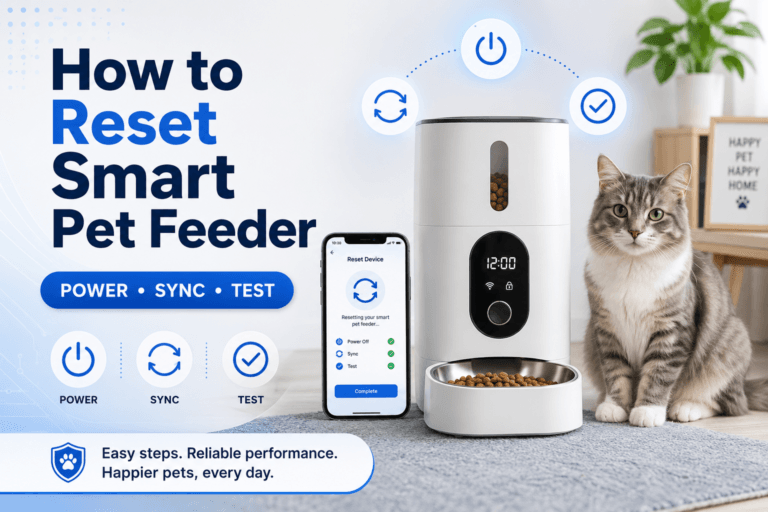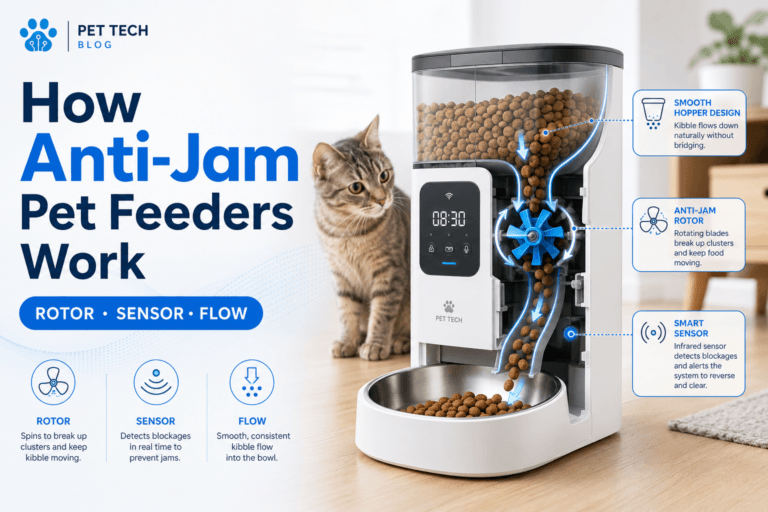

A pet feeder WiFi connection problem can block app controls, hide device status, and make a feeding schedule difficult to verify. It does not always mean the feeder stopped dispensing: some models keep a stored schedule when the network is unavailable, while other functions may depend on the app. Check the model instructions and the feeder itself before adding a manual meal.
For app-controlled dry-food meals, a smart automatic pet feeder with app control works best when its network, power, placement, and app setup are stable. This guide walks through those checks in order, then explains how to verify the schedule after reconnecting.
Direct Answer: Pet Feeder WiFi Connection
A pet feeder WiFi connection usually fails because of network incompatibility, weak signal, incorrect credentials, incomplete pairing, app permissions, or a power interruption. Check the feeder’s power and indicator first, confirm the router requirements in the manual, then reconnect the app and test a scheduled dispense. Avoid changing several router settings at once; it makes the cause harder to identify.
Why This Happens
A smart feeder depends on several parts working together: the feeder needs power, the phone app needs to discover it, the router must support the device’s network requirements, and the password must be entered correctly. Pairing can also fail if the feeder still stores a previous router profile or is not in setup mode.
Household changes can break a connection that used to work. A new router, changed WiFi name or password, moved feeder, phone replacement, app update, or power outage can interrupt the link between the feeder and app. The feeder may still be usable, but the network setup needs to be checked again.
What To Do
1. Why a Pet Feeder Cannot Connect to WiFi
Start with the exact app message and the feeder’s indicator light. “Device not found” points toward pairing mode or phone discovery permissions. A password error points toward credentials. An “offline” status after successful setup points toward the router, signal, or feeder power. Treat these as different problems instead of repeating the same reset for each one.
2. Check Whether the Router Uses 2.4GHz
Many smart feeders require a 2.4GHz network, but the supported band depends on the model. Check the manual before setup. If the router uses one network name for multiple bands, follow the router or feeder instructions for pairing; do not assume every device handles band selection the same way. The FCC’s home network security guidance is also useful when reviewing router settings and access.
3. Reset the Feeder and Reconnect the App
Move the feeder near the router for setup and keep it plugged in. Use the WiFi or reset button sequence specified by the manufacturer, then wait for the correct pairing indicator or voice prompt. Open the app, choose its add-device flow, and leave the feeder untouched until setup completes. Reset procedures differ by model, so do not guess how long to hold a button.
4. Check the WiFi Password and App Permissions
Re-enter the WiFi password carefully, including capital letters and special characters. Grant the app the discovery permissions it requests, such as Bluetooth, nearby devices, or local network access. Permission names vary by phone. If a VPN or network filter prevents local discovery, temporarily disable it during setup, then restore it and verify the connection.
5. Fix Connection Drops
If the feeder connects but later goes offline, test it closer to the router. Thick walls, metal cabinets, appliances, and distant corners can weaken reception. Restart the feeder and router, then check whether other devices also lose connection. If the feeder works beside the router but not in its normal location, adjust placement or improve coverage before repeating setup.
6. Update the Feeder Firmware
Update firmware only after the feeder is online, powered, and on a stable network. Start the update through the official app and keep power connected until the app confirms completion. If an update fails, wait for the device to finish restarting before trying again. Follow the smart feeder firmware update guide for a safer recovery sequence.
7. When to Contact Support
Contact the manufacturer if the feeder will not enter pairing mode, cannot join a confirmed compatible network beside the router, or repeatedly fails an official firmware update. Include the model, app version, router model, indicator pattern, exact error, and the steps already tried. For app discovery problems, see the smart pet feeder WiFi connection guide.
Quick Troubleshooting Table
| Problem | Possible Cause | What to Do |
|---|---|---|
| Feeder cannot find the network | Unsupported band or network setting | Check the manual and use the supported network, often 2.4GHz |
| Pairing fails | Incorrect password, permissions, or pairing mode | Re-enter the password, grant requested permissions, and restart pairing |
| Feeder frequently disconnects | Weak signal or unstable router | Test near the router, then adjust placement or coverage |
| Firmware update fails | Unstable network or interrupted restart | Keep power connected, wait for restart, and retry through the official app |
Once the feeder reconnects, confirm the schedule and run a dispense test while you are home. If you need help using the app after setup, follow how to use a smart pet feeder. If the device remains offline after pairing, use the smart pet feeder offline troubleshooting guide.
The Feeding Loop Behind This Problem
The intended routine is simple: the owner sets a schedule, the feeder dispenses food, and the owner verifies the event when needed. A connection alert interrupts the confirmation step. If the owner immediately adds food without checking the feeder or bowl, the feeder may later reconnect and dispense the scheduled portion as well. Verify first, then provide a measured backup meal only if the scheduled meal actually failed.
The Emotional Trigger Owners Miss
The common trigger is concern about a missed meal. That concern is understandable, especially when the feeder supports workday or travel routines, but an app alert alone does not prove that food was not dispensed. Check the feeder’s physical state, saved schedule, and app log before changing portions or resetting the device. A calm checklist is more reliable than rapid changes.
The Addiction Mechanism
This is not a clinical addiction problem. The relevant reinforcement loop is repeated checking: an alert creates uncertainty, opening the app briefly reduces it, and the next alert starts the cycle again. Repeated checking does not improve the network. Use a fixed diagnostic sequence—power, router, pairing, and schedule verification—then make one change at a time.
Common Failure Pattern
An owner sees an offline alert, resets the feeder, changes the router password, deletes the app entry, and adds food manually. The feeder later reconnects, but the original schedule and the extra meal are now difficult to track. The cause is acting before identifying whether the problem is power, network, or app discovery. Record the error, check the feeder, and change only the setting that matches the evidence.
Real-World Impact
A weak connection can reduce confidence in the schedule, delay remote changes, or prevent app notifications. It can also create duplicate meals if owners respond to every alert with extra food. The practical safeguard is a tested offline plan: know what the specific feeder does without WiFi, keep a backup feeding method available, and verify the schedule after service returns. The Cybersecurity and Infrastructure Security Agency’s strong password guidance is relevant when protecting accounts used to manage connected devices.
WiFi is useful for remote checks and app control, while Bluetooth is generally intended for nearby control. The right choice depends on whether you need access away from home; see WiFi vs. Bluetooth pet feeder. If camera monitoring is part of your setup, compare the specific network and viewing requirements in the WiFi pet feeder with camera guide.
Can This Be Fixed?
Most pet feeder WiFi connection problems can be fixed when the feeder powers on, supports the router’s network, and enters pairing mode. Check power, verify the network requirement, pair close to the router, enter the password carefully, and test the schedule. If the feeder repeatedly fails beside the router on a compatible network, stop repeating resets and contact support with the diagnostic details.
Who Should Walk Away and Who Should Use This
Use this checklist if setup fails, the app cannot find the feeder, the router or password changed, or the device frequently goes offline. Walk away from treating app control as the only feeding safeguard. If your home has unreliable power or network coverage, build a backup routine and confirm what the feeder does offline before relying on remote features.
Mini FAQ
Why is my pet feeder WiFi connection failing?
It is usually a setup, signal, credential, or power issue. The app and feeder need a compatible network and completed pairing. Check power and the manual’s network requirements before resetting.
Do pet feeders need 2.4GHz WiFi?
Many smart feeders require 2.4GHz, but not every model does. Network support varies by device. Check the product manual and use the specified band during pairing.
How do I reconnect a pet feeder to WiFi?
Reconnect it by confirming power, network compatibility, password, and pairing mode. The app must discover the feeder before setup can finish. Pair near the router and verify the schedule afterward.
Can a pet feeder work without WiFi?
Some feeders keep a stored schedule, while app control and remote status may stop. Offline behavior is model-specific. Test it at home and follow the manufacturer’s instructions.
Why does my feeder work near the router but not in its usual place?
The usual location likely has weaker signal or more interference. Walls, appliances, and cabinets can affect reception. Test another placement or improve network coverage.
Should I reset my pet feeder whenever WiFi fails?
No, reset only when the troubleshooting steps or manual call for a new pairing. A reset can erase saved settings without fixing weak signal. Check power, router status, and credentials first.
After reconnecting, confirm the schedule, test a portion, and note what the feeder does if the network drops again. A WiFi automatic feeder with button backup offers another control method on compatible models, but it still needs a setup that matches the manufacturer’s requirements. A reliable pet feeder WiFi connection should make meal timing easier to verify, not turn every app alert into a feeding decision.