
How to reset smart pet feeder sounds simple until the feeder loses WiFi, forgets the schedule, drops the wrong portion, or disappears from the app right before a meal. A reset can fix connection problems, frozen controls, app pairing errors, firmware glitches, and schedule confusion. It can also erase settings if the owner resets too aggressively without backing up meal times, portion amounts, time zone, and device access.
For daily feeding, a smart automatic pet feeder with app control should be reset in a controlled order: verify food first, check power second, check WiFi third, then reset only the layer that is actually failing. The goal is not just getting the app online again. The goal is making sure the next meal dispenses correctly.
Direct Answer: How to Reset Smart Pet Feeder
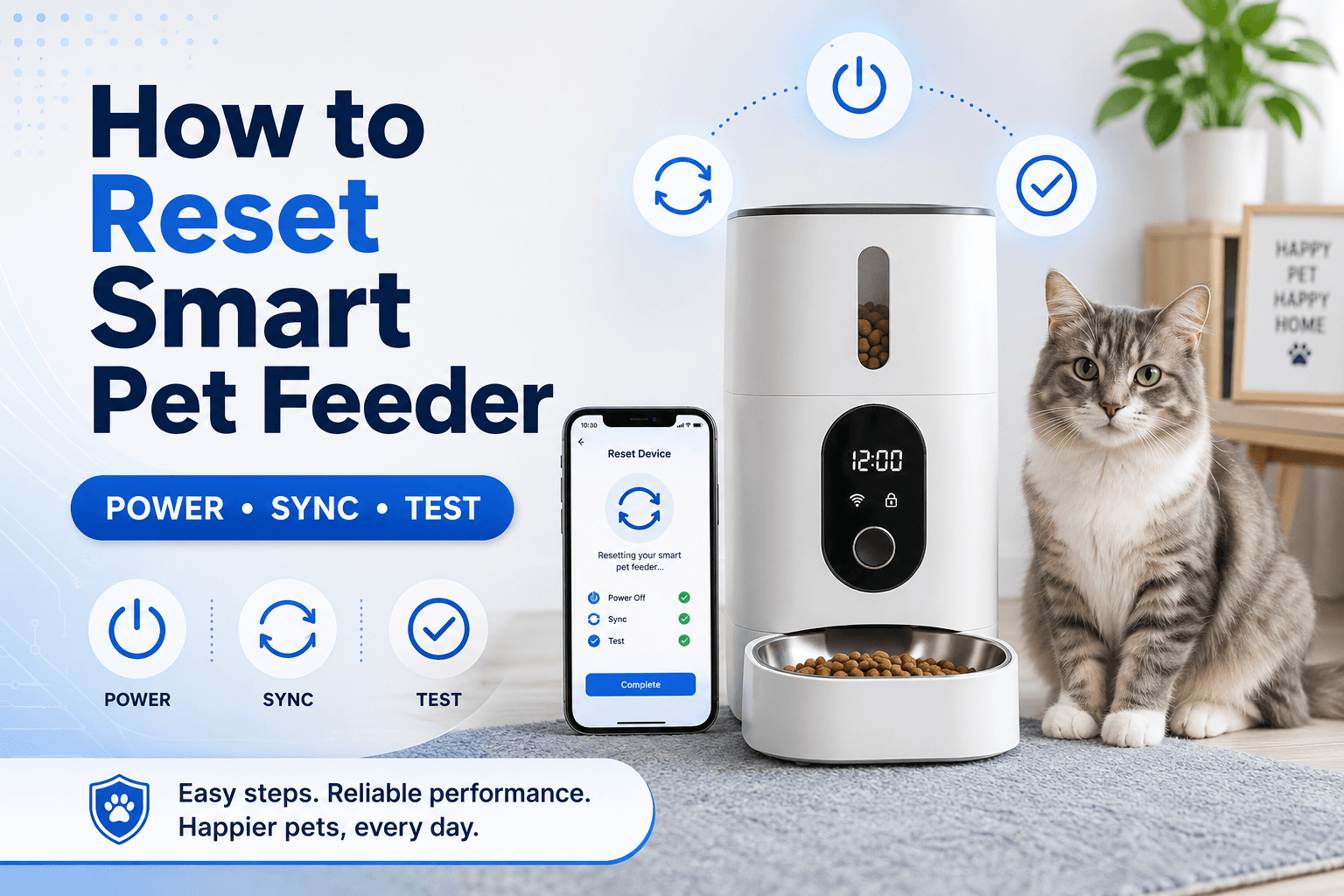
How to reset smart pet feeder safely is to check the bowl and food tank first, save the current schedule and portion settings, confirm stable power, restart the feeder, restart the app, reconnect WiFi if needed, use the reset button only according to the product manual, re-pair the feeder in the app, restore meal times, confirm the time zone, run a small test dispense, and recalibrate portions before trusting the normal schedule.
Do not jump straight to factory reset. A smart feeder may only need a power restart, app refresh, WiFi reconnect, or schedule correction. Factory reset should be saved for deeper failures because it can remove account pairing, stored schedules, network settings, voice messages, camera settings, and notification rules.
Why This Happens
Smart feeders depend on several connected systems at once: power, firmware, WiFi, app account, cloud service, local schedule memory, motor control, sensors, and the physical food path. When one layer fails, the entire feeder can look broken.
The FTC’s guidance on securing internet-connected devices at home recommends keeping connected devices updated and using security features. That matters because resetting a feeder often involves app login, account permissions, WiFi credentials, and sometimes camera or audio access.
A proper how to reset smart pet feeder process avoids blind troubleshooting. It identifies whether the problem is power, WiFi, app pairing, schedule memory, firmware, or mechanical dispensing before wiping everything.
What To Do First
Before touching reset, verify whether the pet has already eaten. Check the bowl, app feeding log, food tank, and next scheduled meal. Resetting during a feeding window can create missed meals or duplicate meals if the owner compensates manually and the feeder later runs the schedule.
Next, write down or screenshot the current settings: meal times, portion count, daily total, time zone, app users, voice recording, camera settings, notification preferences, and WiFi network name. If the feeder has a removable memory or local settings backup, follow the manufacturer’s instructions.
Use scientific pet feeding schedule before rebuilding the schedule. A reset should not become an accidental diet change.
The Feeding Loop Behind Reset Panic
The reset panic loop starts when the app says offline or the feeder does not respond. The owner worries the pet missed food and presses buttons, unplugs the unit, resets the device, deletes it from the app, and feeds manually. Later, the feeder reconnects or the schedule is restored incorrectly.
Now the pet may receive too much food, too little food, or meals at the wrong time. The owner thinks the reset failed, but the actual problem is uncontrolled troubleshooting.
A better how to reset smart pet feeder loop separates feeding safety from device repair. First verify the meal. Then stabilize power. Then reconnect the app. Then test one small dispense. Only after that should the normal schedule resume.
The Emotional Trigger Owners Miss
The emotional trigger is uncertainty. Owners trust smart feeders because they reduce routine stress. When the feeder stops responding, the owner loses proof. That uncertainty leads to rushed resets and unnecessary factory wipes.
The calmer approach is diagnostic. If the bowl has food, there is no immediate feeding emergency. If the feeder has power and still follows stored schedules, the app problem may not be a feeding problem. If the motor runs but no food drops, the reset may not fix anything because the issue may be a jam.
Use smart pet feeder offline before assuming the device needs a full reset. Offline status and failed feeding are not always the same problem.
The Addiction Mechanism
The addiction mechanism is troubleshooting-based bonus feeding. If every app error, blinking light, or reset attempt leads to extra food, the pet learns that owner stress around the feeder can produce snacks. Cats may hover near the machine. Dogs may crowd the bowl during setup.
This makes reset events louder, messier, and less controlled. The pet is not helping diagnose the feeder. The pet is responding to the owner’s pattern.
A controlled how to reset smart pet feeder routine keeps food measured. If a meal truly failed, replace only the missed amount and log it. Do not feed extra just because the app looked wrong.
Soft Reset vs Factory Reset
A soft reset usually means restarting the feeder without erasing all settings. This may involve turning the feeder off, unplugging it, waiting briefly, reconnecting power, and letting it reboot. A soft reset is useful for frozen displays, temporary app delays, or a feeder that needs to reconnect after a power interruption.
A factory reset usually erases device pairing and settings. It may require holding a reset button for a specific number of seconds until an indicator light flashes. This should be used when the feeder must be re-paired, transferred to a new account, connected to a new WiFi network, or recovered from a deeper setup failure.
The first rule of how to reset smart pet feeder is to use the smallest reset that solves the problem. Do not use factory reset as the first tool unless the manual specifically says to do so.
Step 1: Check Power Before Resetting
Power problems often look like app problems. A loose adapter, switched-off outlet, weak backup battery, damaged cable, or pet-chewed cord can make the feeder appear offline, frozen, or unreliable.
Check the wall outlet, adapter, feeder port, battery compartment, and cable route. If the feeder has a battery warning light, resolve that first. Resetting a feeder with unstable power can create repeated setup failures.
Use automatic pet feeder battery light blinking, pet feeder with battery backup, and chew proof pet feeder cable. A clean how to reset smart pet feeder process starts with stable electricity.
Step 2: Restart the App
Sometimes the feeder is fine and the app is stale. Close the app fully, reopen it, check login status, refresh the device page, and confirm that the phone has internet access. If the app recently updated, check whether permissions or login state changed.
Do not delete the feeder from the app immediately. Device deletion can force re-pairing and may remove settings. First check whether the app can refresh, whether another family member can see the device, and whether notifications or manual controls still work.
For app-controlled feeding, use app controlled pet feeder benefits. The app is useful only when it supports controlled feeding instead of rushed troubleshooting.
Step 3: Check WiFi Before Factory Reset
If the feeder is offline, the problem may be WiFi rather than the feeder itself. Check whether the router is working, whether the WiFi password changed, whether the feeder is too far from the router, and whether the feeder requires a 2.4 GHz network.
The FCC’s home network security guide recommends protecting home WiFi with strong security and changing default settings. For smart feeders, the practical balance is compatibility plus security: do not remove WiFi protection just to force pairing.
Use pet feeder WiFi connection and mesh network smart pet feeder connection. Many owners searching how to reset smart pet feeder actually need a network reset, not a full device reset.
Step 4: Use WiFi Reset When Only the Network Changed
If the home network name or password changed, the feeder may only need WiFi re-pairing. Some models have a network reset mode that clears WiFi credentials without wiping every feeding setting. Others require full reset before connecting to a new network.
Follow the product manual carefully. Put the feeder into pairing mode, keep the phone on the correct WiFi band, enter the password accurately, and keep the feeder close enough to the router or mesh node during setup.
After the WiFi reset, move the feeder back to its final location and test again. A feeder that pairs beside the router but fails in the kitchen has a placement problem, not necessarily a reset problem.
Step 5: Use Factory Reset Only When Needed
Factory reset is appropriate when the feeder is being transferred to a new owner, stuck in a failed pairing state, connected to an old account, showing persistent app errors after power and WiFi checks, or specifically instructed by the product support process.
Before factory reset, screenshot settings. Empty or secure the food tank if the feeder may dispense during setup. Keep the pet away from the station so testing does not become begging or bonus feeding.
During factory reset, use the exact button sequence from the manual. Holding the wrong button or releasing too early may put the feeder into pairing mode without completing reset. Holding too long may erase more than intended on some devices.
Step 6: Re-Pair the Feeder in the App
After reset, the feeder usually needs to be added back to the app. Use the correct app account, correct WiFi network, and correct device model. Keep the phone near the feeder during pairing. Avoid pairing through VPNs, unstable guest networks, or weak mesh nodes unless the product instructions support them.
If the feeder has a QR code, serial number, Bluetooth pairing step, or flashing indicator requirement, complete those steps in order. Do not repeatedly reset if pairing fails once. Check WiFi band, password, app permission, Bluetooth permission, location permission if required, and router settings.
A disciplined how to reset smart pet feeder process avoids reset loops. Pair once, test, diagnose the failure, then adjust one variable at a time.
Step 7: Restore the Feeding Schedule
After reset, restore meal times, portion counts, feeding days, manual feed limits, voice message settings, notification rules, and shared user access. Do not rely on memory if the feeder supports several meals per day.
Check the time zone. A feeder reset can expose time setting errors, especially after travel, daylight saving changes, router changes, or app reinstall. A correct schedule in the wrong time zone is still wrong.
Use smart pet feeder timezone setting. A major part of how to reset smart pet feeder is making sure the next meal happens at the right local time.
Step 8: Test Dispense Before Trusting the Schedule
After reset, run one small test dispense into an empty bowl. Watch the chute. Listen for motor strain. Confirm food actually reaches the bowl. Then remove or count that test food so it does not become an extra meal.
If the feeder has a camera, verify that the bowl is visible. If it has voice recording, test the meal call. If it has notifications, confirm the app records the manual test or scheduled test correctly.
A reset is not finished when the feeder appears in the app. A reset is finished when the feeder dispenses the right amount at the right time and the owner can verify it.
Step 9: Calibrate Portions After Reset
Some feeders keep portion calibration after reset. Others may return to default settings. Even if the app shows the same portion number, the owner should confirm real output by weight.
Use a digital kitchen scale. Run several identical test portions. Compare gram output. Rebuild the schedule based on actual food weight, not only portion labels. Different kibble size and density can change output.
Use pet feeder calibration. Accurate feeding is one of the most important steps in how to reset smart pet feeder.
Step 10: Check Firmware After the Reset
After re-pairing, the app may prompt a firmware update. Do not update blindly right before a meal, before leaving home, or during travel. Update when you can observe the feeder afterward.
After firmware updates, check schedule, time zone, portion settings, camera, voice message, notifications, and WiFi status. Firmware changes can improve reliability, but they can also reset preferences or change behavior.
Use smart feeder firmware update. A reset and firmware update should always be followed by a test meal.
When Reset Will Not Fix the Problem
Reset will not fix every feeder issue. If the motor turns but no food drops, the feeder may be jammed. If portions are inconsistent, the rotor may be dirty or the kibble may be incompatible. If food smells stale or clumps, moisture may be the issue. If the battery light blinks, power may be unstable.
Resetting software cannot clear a physical blockage. Before repeating resets, inspect the hopper, rotor, chute, bowl, and food condition.
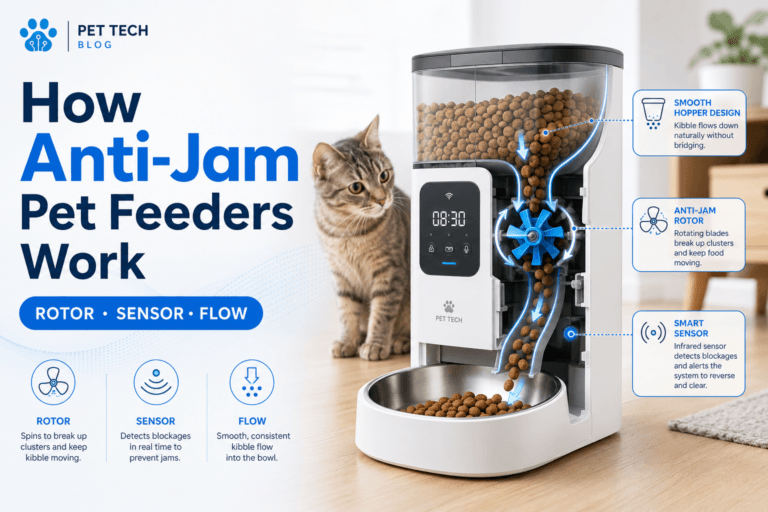
Use pet feeder jammed, clean pet feeder rotor assembly, and pet feeder desiccant pack life. A strong how to reset smart pet feeder guide must separate digital faults from food-path faults.
Camera Feeder Reset
A camera feeder reset has extra checks. After reset, confirm live view, video angle, storage settings, audio settings, privacy controls, notification access, and whether the camera reconnects after power interruption.
A camera may fail while feeding still works. Feeding may fail while the camera still streams. Treat camera and dispensing as separate systems during reset testing.
A smart WiFi pet feeder with camera can reduce meal uncertainty when configured correctly. Use pet feeder video storage comparison if saved footage matters after reset.
Voice Recorder Reset
If the feeder has a voice recorder, reset may erase the saved meal call. Re-record a short message, save it, test playback, and confirm whether it plays during scheduled meals or only manual tests.
Do not repeatedly trigger food while testing audio. Use one small test portion if required, and count it in the day’s total.
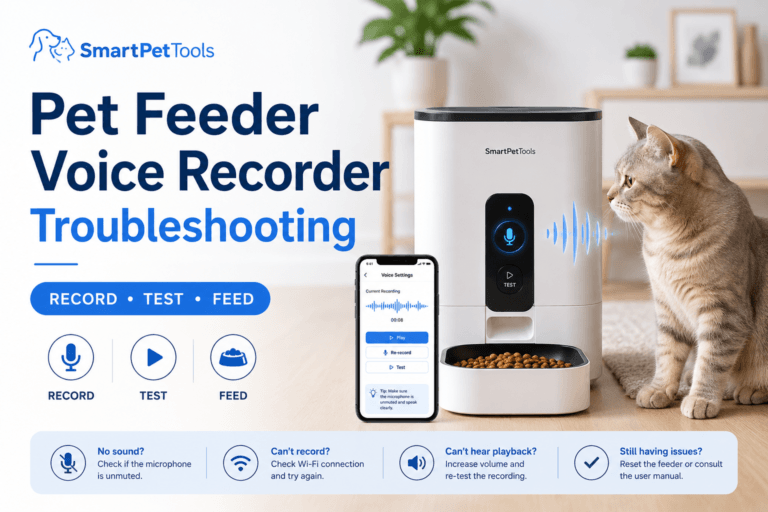
Use pet feeder voice recorder troubleshooting. Audio is a cue, not proof that food dispensed.
Security After Reset
After factory reset, review account security. Remove old users, pet sitters, previous owners, or unused shared accounts. Use a strong app password. Confirm the feeder is connected to the intended home network. Update firmware from the official app path.
The NIST consumer IoT cybersecurity work focuses on connected-device security expectations, including device identification, secure configuration, and updates. For smart feeder owners, reset is a good moment to remove stale access and rebuild clean settings.
Use smart device security. A reset should make the feeder more reliable and more controlled, not more exposed.
Common Failure Pattern
The most common failure pattern is factory resetting too early. The owner erases the feeder, loses the schedule, struggles with WiFi pairing, and creates a larger problem than the original app glitch.
The second failure is forgetting to test food output. The app shows online, but the feeder dispenses too much, too little, or nothing because calibration or the food path was not checked.
The third failure is ignoring time zone. A feeder can be reset successfully and still feed at the wrong hour if the clock is wrong.
Real-World Impact
The real-world impact of a good reset is restored confidence. The feeder powers on, connects, follows the right schedule, dispenses measured portions, sends useful alerts, and behaves predictably after interruption.
The impact of a bad reset is feeding chaos: duplicate meals, missed meals, wrong times, lost app access, camera failure, lost voice messages, offline alerts, and owner distrust. Most of these problems come from skipping documentation and testing.
For choosing feeder systems, compare the smart feeders collection. Choose based on app reliability, easy reset process, backup power, cleaning access, camera need, and clear schedule control.
Can This Be Fixed?
Yes, most reset problems can be fixed with a structured recovery process. Save settings first. Check food and bowl status. Stabilize power. Restart the app. Reconnect WiFi. Factory reset only when needed. Re-pair the feeder. Restore schedule and time zone. Test dispense. Calibrate portions. Verify alerts, camera, audio, and backup power.
Run a seven-day reset check. Record meal times, portion weights, app alerts, offline events, manual feeds, power interruptions, camera clips, and pet behavior around the feeder. If errors return, identify the layer: power, WiFi, app, firmware, schedule, or food path.
Cat owners can compare the cat feeders collection when small frequent meals and quiet timing matter. Dog owners can compare the dog feeders collection when bowl size, cable placement, and feeder stability need more planning.
Who Should Walk Away and Who Should Use This
Walk away from factory resetting without screenshots, deleting devices from the app too early, changing router settings randomly, feeding extra before checking the bowl, or assuming online status proves correct food output. These mistakes create reset loops.
Use this how to reset smart pet feeder process if your feeder is offline, frozen, paired to the wrong account, moved to a new WiFi network, not responding to the app, showing schedule errors, losing camera access, or behaving strangely after a firmware update.
For routine daily feeding, a 2L smart pet feeder for regular feeding should always be restored with verified time, measured portions, clean food flow, and a written backup rule after reset.
Mini FAQ
How do I reset a smart pet feeder?
Reset a smart pet feeder by checking the meal status, saving current settings, confirming power, restarting the feeder and app, reconnecting WiFi if needed, using the reset button according to the manual, re-pairing the device, restoring the schedule, and testing dispense.
Should I factory reset my feeder first?
No, factory reset should not be the first step unless the manual says so. Try power restart, app refresh, WiFi reconnect, and schedule checks before erasing all settings.
Will resetting erase my feeding schedule?
A factory reset may erase feeding schedules, WiFi credentials, account pairing, voice messages, camera settings, and notification rules. Screenshot settings before resetting.
Why will my feeder not reconnect after reset?
Your feeder may not reconnect after reset because of wrong WiFi password, unsupported WiFi band, weak signal, app permission issues, router security settings, or pairing mode timing.
Do I need to recalibrate after reset?
Yes, portion testing after reset is smart because settings may return to defaults and food output can vary by kibble size, density, and rotor condition.
Does resetting fix feeder jams?
No, resetting does not fix a physical jam. If the motor runs but food does not drop, inspect the hopper, rotor, chute, kibble size, moisture, and food dust before repeating reset.
The safest answer to how to reset smart pet feeder is controlled recovery, not button panic. Save the schedule, check power, reconnect WiFi, reset only the failing layer, restore meal settings, test the chute, calibrate portions, and verify the next meal before trusting automation again.