
A smart pet feeder timezone setting mistake can shift every meal without making the feeder look broken. The app may still open, the feeder may still be online, and the schedule may still show breakfast and dinner. The problem is that the feeder, phone, router, cloud account, or app may be reading time differently. One wrong time zone can turn a reliable feeding routine into late meals, early meals, duplicate portions, or missed feeding windows.
For scheduled dry-food feeding, a smart automatic pet feeder with app control works best when the clock, app, WiFi connection, and feeding schedule are verified together. The feeder controls portions, but the smart pet feeder timezone setting controls when those portions appear.
Direct Answer: Smart Pet Feeder Timezone Setting
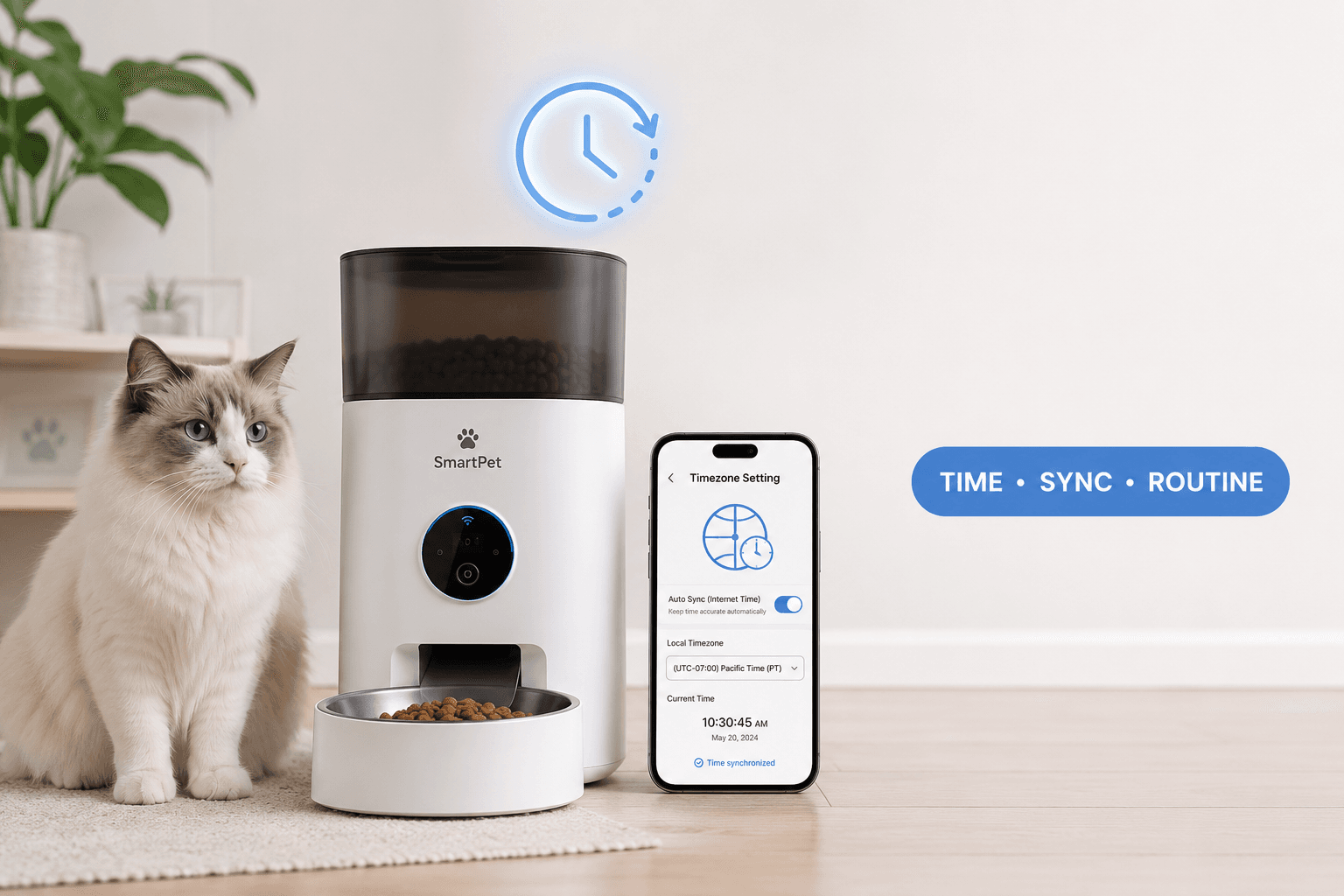
A smart pet feeder timezone setting tells the feeder app which local time to use for scheduled meals, notifications, logs, and manual feeding records. If the timezone is wrong, the feeder can dispense food at the wrong hour even when the schedule looks correct. The safest fix is to confirm phone time, app timezone, feeder location, daylight saving behavior, WiFi sync, and the next scheduled meal before relying on the feeder.
The main mistake is assuming the feeder uses the time printed on the phone screen. Some systems follow the phone’s timezone. Some follow the home location in the app. Some sync through the cloud. Some retain a device clock after setup. A reliable smart pet feeder timezone setting routine checks the actual dispense time, not only the schedule label.
Why This Happens
Smart feeders depend on time data from more than one layer. The phone has a timezone. The feeder app may have account or home-location settings. The feeder may sync with a server. The router may reconnect after an outage. Firmware may restart the device clock. Travel can change the phone’s timezone while the pet remains at home.
The IANA time zone database exists because time zones and daylight saving rules are more complex than simple clock offsets. Pet owners do not need to manage technical databases, but they do need to understand the practical result: time settings can change, and scheduled devices can behave differently when location, daylight saving, or app sync changes.
A smart pet feeder timezone setting error often appears after travel, daylight saving time, phone replacement, app reinstall, firmware update, router change, or moving the feeder to another home. The feeder is not always defective. It may be following a different clock than the owner expects.
What To Do First
Start by checking the next scheduled meal time inside the feeder app. Then compare it with the current local time where the pet and feeder are physically located. Do not use the owner’s travel location as the reference if the pet is still at home.
A practical smart pet feeder timezone setting check has six steps: confirm the phone clock, confirm the app timezone, confirm feeder location, check daylight saving behavior, test one small scheduled meal, and verify the feeding log after the dispense. Manual feeding should not be used as the main test because it does not prove that the scheduled clock is correct.
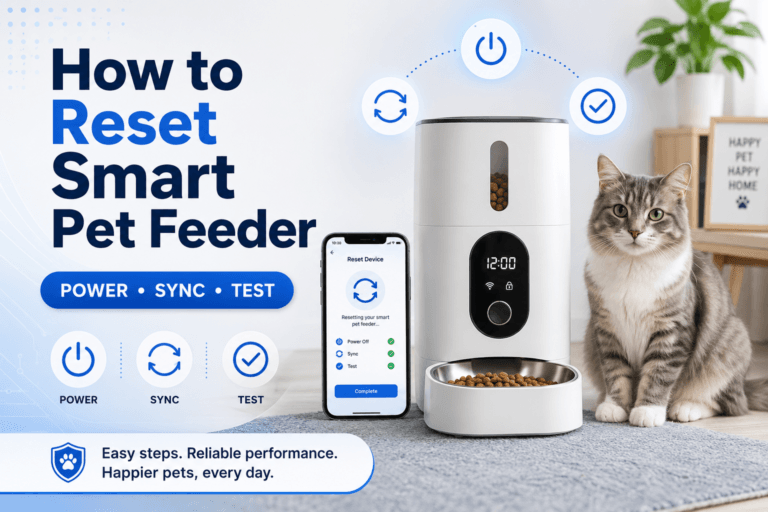
Use how to use a smart pet feeder when rebuilding app setup. Timezone, meal schedule, portion count, and app account should be checked together after any reset.
The Feeding Loop Behind Time Errors
The time-error loop starts when the feeder dispenses at the wrong hour. The pet waits, begs, or misses the normal meal window. The owner opens the app, sees the schedule listed correctly, and assumes the pet must still be hungry. Extra food is added manually.
Later, the feeder follows its shifted schedule and dispenses the planned meal. Now the pet has received a manual replacement plus an automatic meal. The owner blames the feeder, but the real problem was a clock mismatch.
A better smart pet feeder timezone setting routine uses verification before compensation. Check the bowl, app log, next scheduled time, and actual dispense history. If manual feeding is needed, measure it and subtract it from the daily amount. Do not let a clock error become an overfeeding loop.
The Emotional Trigger Owners Miss
The emotional trigger is schedule panic. Owners buy smart feeders because they want food to appear on time. When the pet’s meal seems late, the owner feels responsible and reacts quickly. That reaction often adds food before the actual timing problem is understood.
Time errors are deceptive because the feeder can look normal. The app may show the correct meal name, the feeder may be connected, and the food tank may be full. Only the clock layer is wrong.
For stable daily timing, use scientific pet feeding schedule. A smart pet feeder timezone setting should protect the schedule, not force the owner to guess every morning.
The Addiction Mechanism
The addiction mechanism is accidental time-based reward. If the feeder runs late and the owner gives food, the pet learns that waiting, vocalizing, or crowding the station can produce an extra meal. If this happens after every time change or app issue, the behavior becomes stronger.
The pet does not understand time zones. The pet understands that owner uncertainty creates food. This matters most in cats that wake owners early, dogs that crowd the feeder, and pets on weight-control routines.
A controlled smart pet feeder timezone setting plan keeps food tied to measured schedule events. If the time setting is wrong, correct the clock and record any manual replacement. Do not teach the pet that clock confusion creates bonus calories.
Daylight Saving Time Problems
Daylight saving time can shift scheduled feeding when the app, phone, or feeder handles time changes differently. Some systems adjust automatically. Some schedules may appear unchanged while the actual dispense time moves. Some owners change the phone clock while the feeder remains tied to the home location.
The U.S. Naval Observatory’s time services show how precise timekeeping is treated as infrastructure. In a pet-feeding home, precision is simpler but still important: breakfast should not drift because the owner ignored the clock setting.
Use daylight savings pet feeding before seasonal clock changes. A smart pet feeder timezone setting should be checked before the next critical meal, not after the pet has already missed the routine.
Travel and Remote Feeding
Travel creates one of the most common timezone mistakes. The owner flies to another country. The phone changes timezone automatically. The feeder remains at home. The app may display times based on the phone, the feeder, the home profile, or the cloud account depending on design.
Before traveling, record the feeder’s home timezone and the local meal times for the pet. Do not edit the feeder schedule from another country unless the app clearly shows whether the time refers to the pet’s location or the owner’s current location.
A smart WiFi pet feeder with camera can help verify whether the meal actually arrived, but the camera does not fix a wrong schedule. A smart pet feeder timezone setting still needs a location-based check before travel.
Phone Clock vs Feeder Clock
The phone clock is not always the feeder clock. A phone can use automatic timezone detection, carrier time, travel location, or manual settings. A feeder may use the app account, cloud sync, home profile, or device memory. When these layers disagree, the schedule can shift.
The safest method is to create a short test schedule. Set a small dispense event for a few minutes later, using the app’s schedule function. Watch whether the feeder dispenses at the expected local time. Then delete or correct the test schedule after verification.
A good smart pet feeder timezone setting check should always end with real-world confirmation. The app display is useful, but the bowl result is the proof.
App Reinstall and Account Changes
App reinstall, phone replacement, account logout, or changing the feeder’s home profile can reset or alter time behavior. The owner may sign back in and assume the old schedule is still correct. That is a risky assumption.
After any account or app change, check the schedule from zero. Confirm meal names, meal times, portion counts, timezone, daylight saving behavior, notifications, and manual feeding history. Then run a small scheduled test.
Use smart device security when reviewing app access. A smart pet feeder timezone setting can be changed accidentally when too many people share full feeder control.
Firmware Updates Can Affect Time
Firmware updates can restart a feeder, change app compatibility, refresh cloud sync, or alter schedule behavior. The update may be successful, but the feeding routine still needs verification afterward.
Never assume a firmware update is complete just because the progress bar finished. Check the time zone, meal schedule, portion count, time format, notification behavior, and next dispense time after the update.
Use smart feeder firmware update. A smart pet feeder timezone setting review should be part of every major app or firmware change.
WiFi and Offline Behavior
Some feeders continue stored schedules while offline. Others rely more heavily on app or cloud connection. If WiFi drops, the feeder may keep its last known time, reconnect later, or require resync depending on the model.
This matters because an offline feeder can appear to have a schedule problem when the real issue is connection. A router reboot, power outage, or weak WiFi location can make meal logs delayed or confusing.
Use pet feeder WiFi connection and smart pet feeder offline. A strong smart pet feeder timezone setting plan checks both time and connectivity before changing the meal schedule.
Home Assistant and Smart-Home Time
If the feeder is connected to a smart-home platform, the automation system may add another time layer. Home Assistant, cloud automations, phone shortcuts, smart buttons, or voice routines can all use time triggers. If one system uses a different timezone or automation condition, feeding can shift.
The official Home Assistant basic configuration documentation includes location and time zone settings because automations depend on local time. A smart pet feeder timezone setting becomes more important when external automations are allowed to influence feeding.
Use home assistant pet feeder integration if the feeder is part of a smart-home dashboard. Automations should support the feeder’s schedule, not create a second uncontrolled clock.
Common Failure Pattern
The most common failure pattern is changing the schedule while traveling. The owner sees dinner time in the app, assumes it refers to the pet’s home time, and adjusts it from another timezone. The feeder then shifts meals at home.
The second failure is not checking after daylight saving changes. The pet’s meals drift by one hour, and the owner compensates with manual food instead of correcting the feeder clock.
The third failure is checking only the displayed schedule. A smart pet feeder timezone setting is only correct when the feeder dispenses at the intended local time. The screen is not enough. The bowl result matters.
Real-World Impact
The real-world impact of a wrong timezone setting is routine drift. Pets may eat too early, too late, twice, or not at all during the intended window. Owners may add manual food because the pet appears hungry. Weight-control plans may fail because meals are no longer aligned with the daily total.
Time errors also affect trust. Once owners believe the feeder is unreliable, they start overriding it. Frequent overrides create more confusion than the original clock problem.
For measured feeding after schedule corrections, use pet feeder calibration. A correct smart pet feeder timezone setting controls when food appears, while calibration controls how much appears.
Can This Be Fixed?
Yes, smart feeder time errors can be fixed with a full timezone reset. Confirm the pet’s physical location. Set the phone to correct local time. Check the app timezone or home location. Confirm daylight saving behavior. Rebuild the schedule if needed. Test one small scheduled dispense. Verify the feeding log. Then restore the normal meal plan.
Run a seven-day time check after major changes. Record actual dispense time, app log time, pet behavior, manual feeding, daylight saving changes, app updates, travel edits, and offline events. If the schedule shifts again, identify which clock layer changed.
For full feeder reliability, use pet feeder maintenance. A feeder should be clean, calibrated, connected, powered, updated, and time-verified before the owner depends on it during work, sleep, or travel.
Who Should Walk Away and Who Should Use This
Walk away from editing feeder schedules casually while traveling, during daylight saving changes, after app reinstall, or immediately after firmware updates without testing. Also walk away from giving extra food before checking whether the feeder actually missed the meal.
Use a smart pet feeder timezone setting checklist if the feeder dispenses one hour early, one hour late, at strange times after travel, after daylight saving changes, after router outages, after app reinstall, or after smart-home automation changes. It is especially important for cats that demand meals at exact times, dogs on timed meals, shift-worker homes, and travel-based feeding routines.
Cat owners can compare the cat feeders collection for timed small meals. Dog owners can use the dog feeders collection when meal timing, bowl size, and portion volume need stronger control.
Mini FAQ
What is a smart pet feeder timezone setting?
A smart pet feeder timezone setting is the app or device setting that tells the feeder which local time to use for scheduled meals, logs, notifications, and automation behavior. If it is wrong, meals can dispense at the wrong hour.
Why is my smart feeder feeding at the wrong time?
Your smart feeder may be feeding at the wrong time because of an incorrect timezone, daylight saving change, phone travel setting, app reinstall, firmware update, WiFi resync, or smart-home automation using a different clock.
Should feeder time follow my phone or my pet’s location?
Feeder time should match the pet’s physical location, not the owner’s travel location. When traveling, confirm whether the app displays home time or phone-local time before editing the schedule.
Can daylight saving time affect a smart pet feeder?
Daylight saving time can affect a smart pet feeder if the app, phone, cloud service, or feeder handles the clock change differently. Check the next scheduled meal before and after seasonal time changes.
How do I test the timezone setting?
Test the timezone setting by creating a small scheduled dispense a few minutes ahead, watching whether it happens at the expected local time, then checking the feeding log. Delete the test after verification.
Should I feed manually if the time setting is wrong?
Feed manually only if the scheduled meal truly failed, and measure the replacement portion. Record it and subtract it from the daily total. Do not let a timezone mistake become a bonus meal.
The best time setup is boring and verified. The feeder should know where the pet is, when meals happen, and how the schedule behaves after travel, daylight saving, firmware updates, and WiFi loss. A correct smart pet feeder timezone setting keeps meal timing stable so the owner can trust the routine instead of chasing the clock.