
Feeder time controls when your pet actually eats. If the clock on your automatic pet feeder is wrong, every scheduled meal lands at the wrong hour — even when the portions and the app look perfect. Setting feeder time means two things: getting the feeder’s clock right, and building a meal schedule that fits your pet’s day. This guide covers both, plus what to do when meals start landing at the wrong time.
Direct Answer: How to Set Feeder Time
To set feeder time on an automatic pet feeder, set the feeder’s clock first, then program the meal times. The schedule runs on the feeder’s own clock, not your phone’s clock, so a clock that is off by an hour shifts every meal by an hour. Set the clock in the app or on the feeder’s panel, confirm the time zone, then add meals one at a time and watch the first full day before trusting the schedule.
Why Feeder Time Has Two Parts
Most feeder time problems come from treating the clock and the schedule as one setting. They are separate. The clock is the feeder’s sense of “now.” The schedule is the list of meals attached to clock times. If the clock drifts after a power outage, or the time zone is wrong after a move, the schedule still runs — just at the wrong hours. That is why clock setup comes first, every time.
If you moved house or travel with the feeder, check the time zone setting as well — a correct clock in the wrong time zone is still a wrong clock. Our time zone setting guide explains where that setting lives.
Step 1: Set the Feeder’s Clock
On app-controlled feeders, the clock usually syncs from your phone during pairing — but only if pairing completes cleanly. On button-controlled models, set the time on the feeder’s panel with the clock or timer buttons, following the manual’s button sequence. Either way, verify the clock shows the correct local time before you program any meals.
Re-check the clock after any power outage, after unplugging the feeder, and when daylight saving time starts or ends. Some feeders keep time on a backup battery; others reset to 12:00 and wait for you to set them again. A feeder that dispenses at 3 a.m. after an outage almost always has a reset clock, not a broken schedule.
If the app won’t connect during setup, work through the Smart Life pairing steps first — the clock can’t sync until pairing succeeds. Our Smart Life setup guide covers the full pairing flow, including the 2.4GHz WiFi requirement and the EZ Mode versus AP Mode choice.
Step 2: Build a Meal Schedule
Start with how many meals your pet needs per day. Veterinary guidance commonly recommends two meals a day for healthy adult dogs, and three to four smaller meals for puppies; adult cats generally do well on two meals, with kittens and seniors often fed more often. Your vet’s advice for your pet’s age, weight, and health comes first — these are starting points, not prescriptions. The AVMA’s pet ownership guidelines note that nutrition should be appropriate to the species, age, breed, and health status of the pet — one reason a schedule built for one pet doesn’t automatically fit another.
Space meals evenly across your pet’s waking hours. A common adult pattern is a morning meal and an evening meal, roughly 12 hours apart. Puppies and kittens need shorter gaps between meals, so three or four smaller meals spread through the day usually work better than two large ones. Keep the first meal after you wake and the last meal at least an hour before bedtime, so the schedule matches the household routine instead of fighting it.
Set portions before you set times. Work out the daily total your vet or the food label recommends, then divide it across the meals. Our feeding calculator can help you work out the daily amount before you program anything.
Program one meal at a time, and confirm each entry. A 7:00 a.m. meal typed as 7:00 p.m. is the most common scheduling mistake, and it is easy to miss on a small screen. After entering the full schedule, read it back once from the feeder’s display or the app before you walk away.
Schedules for Workdays and Short Trips
For workdays, anchor the schedule to your departure and return. A morning meal before you leave and an evening meal after you return covers most adult pets. A midday meal matters most for puppies, kittens, and pets on medication schedules that depend on food timing.
Before a trip, run the full schedule for at least two days while you are home. Watch whether meals land on time and in the right amount. Our setup verification checklist covers exactly what to confirm — connectivity, portion output, and the first scheduled meals — before you rely on the feeder.
Know what the feeder does without WiFi before you leave. Some models keep the stored schedule; others need the app to stay connected. If your feeder goes offline, the schedule may still run — check the offline behavior for your model instead of assuming the worst. Our WiFi connection guide explains how to tell a real outage from a display problem.
When the Feeder Dispenses at the Wrong Time
Work through this checklist in order, and change one thing at a time. If you reset the clock, the schedule, and the WiFi in one go, you won’t know which fix worked.
- Check the feeder’s clock against the real time. If it’s wrong, reset it and watch the next meal before changing anything else.
- Check the time zone. A clock that is exactly one hour off — or off by several hours after a move — usually means the time zone is wrong, not the clock.
- Check for a daylight saving change. If meals shifted by an hour overnight in spring or autumn, the feeder probably didn’t adjust. Set the clock manually.
- Compare the app schedule with the feeder’s own display. If they disagree, the feeder’s display is the one that dispenses. Re-sync or re-enter the schedule from the app.
- Check power and the backup battery. A clock that keeps resetting usually points to a power interruption or a dead backup battery, not a software fault.
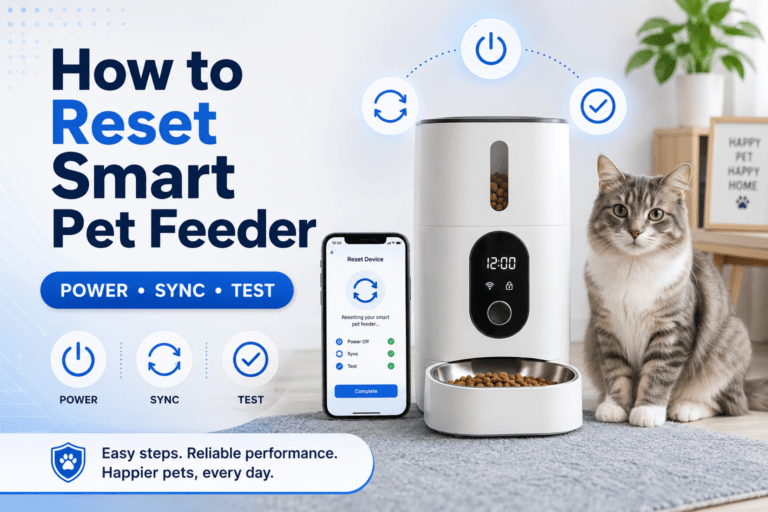
- As a last step, reset and re-pair the feeder. Our reset guide walks through the sequence — but only reset after the steps above, because a reset erases the schedule you are trying to fix.
Mini FAQ
Why does my feeder dispense at the wrong time?
The clock, the time zone, or a daylight saving change is the usual cause — not the schedule itself. Check the feeder’s clock first, then the time zone, then whether a DST change just passed. Fix one item at a time and watch the next meal before changing anything else.
Does the feeder use my phone’s time?
No, the feeder runs on its own clock. The app may sync the clock during pairing, but after that the feeder keeps its own time. That is why a phone time zone change doesn’t fix a feeder that dispenses late — you have to set the feeder’s clock directly.
How many meals should I schedule per day?
Two meals a day suits most healthy adult dogs and cats; puppies and kittens usually need three to four smaller meals. These are common starting points. Your vet’s recommendation for your pet’s age, weight, and health always comes first, and portions matter as much as meal count.
Do I need to reset the clock after a power outage?
Yes, check it every time. Some feeders keep time on a backup battery, but many reset to 12:00 after losing power. A quick clock check after any outage prevents a full day of mistimed meals.
Final Thoughts
Feeder time is a small setting with an outsized effect on your pet’s day. Set the clock first, build the schedule around your pet’s real routine, test it for a full day before you trust it, and re-check the clock after any power outage or time change. Do that, and the feeder becomes what it should be: a quiet system that feeds on time, every time.
If your current feeder makes time setup harder than it should be, browse automatic pet feeders with app control and button backup, and pick the model that matches how you actually feed.