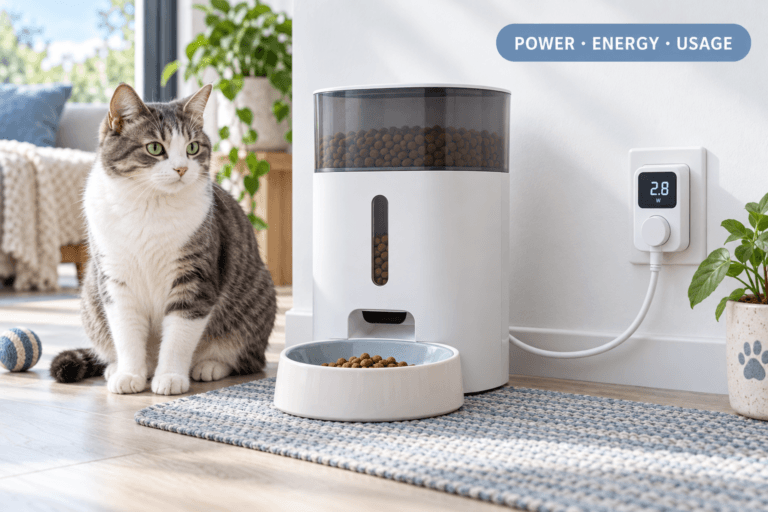

Pet feeder WiFi connection problems usually come from a mismatch between the feeder and router, an incomplete pairing process, or a weak signal where the feeder sits. Start with the network band and setup state before changing advanced router settings. A stable connection matters because app schedules and remote status checks cannot help when the feeder repeatedly goes offline.
If you want app-based schedules after fixing the network, a smart automatic pet feeder with app control can keep feeding times consistent when the device and home network are configured correctly.
Direct Answer: Pet Feeder WiFi Connection
Most pet feeder WiFi connection failures are fixed by connecting the phone and feeder setup to a compatible 2.4GHz network, resetting pairing mode, and entering the password again. If the feeder connects but drops later, check signal strength and router stability. Confirm the exact WiFi requirements in the feeder manual because supported bands and security settings vary by model.
Why This Happens
A feeder joins the home network through a setup process that passes the network name and password from the app to the device. The process can fail when the phone is using a different band, the app lacks local-device permissions, the password is mistyped, or the feeder is still holding old network details. A router can also reject a new device when guest-network isolation or access controls are enabled.
Connection problems often repeat because owners change several settings at once. That makes it difficult to identify the cause. Keep the feeder near the router during setup, change one variable at a time, and note what the indicator light or app reports.
What To Do
1. Why a Pet Feeder Cannot Connect to WiFi
Check the feeder’s power, pairing indicator, network name, and app status first. If the device has already been paired with another router, it may not enter setup automatically. Remove its old entry from the app only when the app instructs you to, then put the feeder into pairing mode using the model’s reset procedure.
2. Check Whether the Router Uses 2.4GHz
Many smart feeders support 2.4GHz WiFi and do not join a 5GHz-only network. Connect the phone to the 2.4GHz network before pairing. If both bands share one name, check the router or feeder instructions for a temporary band-separation method. Do not assume every feeder has the same compatibility; use its product manual as the deciding source.
3. Reset the Feeder and Reconnect the App
Place the feeder beside the router, keep it powered, and use the specified WiFi or reset button sequence. Wait for the pairing indicator or voice prompt before reopening the app. Start a fresh device setup and leave the feeder untouched until the app confirms completion. Reset sequences differ, so do not hold buttons for an arbitrary length of time.
4. Check WiFi Password and Permissions
Enter the password carefully, including capitalization and special characters. Grant the app the requested Bluetooth, nearby-device, location, or local-network permissions. These permissions help the phone discover and configure nearby hardware; they do not replace the feeder’s WiFi password. Temporarily disable a phone VPN during setup if it prevents local device discovery.
5. Fix Connection Drops
If the feeder connects and later goes offline, move it away from thick walls, metal cabinets, and appliances that interfere with wireless signals. Restart the router and feeder, then observe whether other devices also disconnect. If the router uses a mesh system, test setup near the primary router first. The mesh network feeder connection guide can help isolate roaming and node-selection problems.
6. Update the Feeder Firmware
Update only after the feeder has a stable connection and power. Open the app’s device settings, check for an available update, and keep the feeder plugged in until the app confirms completion. For the full sequence and failed-update recovery, use the smart feeder firmware update guide.
7. When to Contact Support
Contact the manufacturer if pairing mode never starts, the feeder cannot join a confirmed compatible network beside the router, or updates repeatedly fail. Include the model, app version, router model, indicator pattern, and exact error text. For other app setup issues, see the smart pet feeder WiFi connection guide.
A reliable setup also depends on sensible placement and safe power routing. Keep cords away from chewing pets and follow the feeder manual’s placement instructions. The ASPCA general pet care guidance offers broader household safety context.
The Feeding Loop Behind This Problem
A connected feeder supports a useful routine: the owner sets a schedule, the device dispenses food, and the app confirms the event. When WiFi fails, that loop breaks. The owner checks the app repeatedly, then may add an unplanned manual meal because the status is unclear. That response can create duplicate feeding rather than solve the connection. Verify the physical feeder and portion before manually dispensing again.
The Emotional Trigger Owners Miss
An offline alert can feel like proof that a pet missed a meal, even when the feeder’s display or scheduled mechanism is still operating. Anxiety pushes owners to tap reset, unplug the device, or change router settings quickly. Those actions can interrupt a setup or update. First check the feeder itself, then use the app and network indicators to identify which part is offline.
The Addiction Mechanism
This is not a clinical addiction problem. It is a repeated checking pattern: an alert creates worry, opening the app briefly reduces uncertainty, and the next alert restarts the cycle. The practical fix is to use one clear verification routine. Confirm the feeder’s local status, check the router, and troubleshoot one cause at a time instead of refreshing the app continuously.
Common Failure Pattern
An owner sees the feeder offline, resets it, changes the router password, and starts setup while the phone remains on 5GHz. The app still cannot find the feeder, and the old network settings are now harder to track. The cause is changing multiple variables before checking band compatibility. Restore a known network state, use the 2.4GHz network if the manual requires it, and repeat setup once.
Real-World Impact
A connection failure can hide schedule changes, delay alerts, and make remote feeding unreliable. It does not automatically mean the feeder stopped dispensing; app connectivity and the feeder’s local schedule are separate functions on some models. Check the manual for offline behavior and keep a backup feeding plan for times when you cannot verify device operation. For general preparedness, review the American Humane pet care checklist.
For network type tradeoffs before replacing a device, compare WiFi vs. Bluetooth pet feeders. Owners who also need live monitoring can review the features in a WiFi pet feeder with camera.
Can This Be Fixed?
In most home setups, a connection issue is fixable when the feeder powers on, enters pairing mode, and supports the router’s network settings. If the device fails beside the router on a compatible network after a documented reset, the problem may be hardware or firmware related. At that point, stop repeating resets and contact support with the diagnostic details.
Who Should Walk Away and Who Should Use This
This troubleshooting path suits owners whose feeder is new, recently moved, or suddenly offline. It is also useful when the app cannot discover a device during setup. Owners who need remote control should choose a model with app support and maintain reliable home WiFi. If a household cannot keep a compatible network stable, a simpler locally controlled feeder may be a better fit than relying on remote features.
Mini FAQ
Does a pet feeder WiFi connection usually require 2.4GHz?
Many models require 2.4GHz. Feeder radios differ, and a 5GHz-only network can prevent discovery. Check the manual and connect the setup phone to the supported band.
Why can the app not find my feeder?
The feeder is usually not discoverable because pairing mode or phone permissions are missing. The app needs to detect nearby hardware before sending network details. Enable requested permissions and restart pairing mode.
Why does my feeder keep disconnecting?
Repeated drops usually point to weak signal or router instability. The feeder may be farther from the router than the phone. Move it closer and check whether other devices lose connection too.
Should I reset the feeder every time it goes offline?
No, reset only when the connection state requires a new pairing. Resetting can erase saved network details without fixing a weak signal. Restart the router and check placement first.
What information should I send to support?
Send the exact error, model, app version, router model, and indicator pattern. Those details help support distinguish setup, network, and hardware faults. Include the steps already tried.
Once the pet feeder WiFi connection is stable, keep the schedule and device status easy to verify. A WiFi feeder with button backup can provide another control method, but it still needs a setup that matches the router. Follow this pet feeder WiFi connection checklist before relying on remote changes.