The Smart Life app (powered by Tuya) is the backbone of the modern smart home, but a successful smart life pet feeder setup can sometimes be frustrating. Whether it’s a “Time Out” error during pairing or the device not being discovered, connection hurdles are the number one reason for pet owner frustration.
A reliable smart life pet feeder setup is essential not just for convenience, but for maintaining your pet’s scientific pet feeding schedule. In this comprehensive 2026 guide, we provide a step-by-step blueprint to master your smart life pet feeder setup, ensuring your pet never misses a meal due to a technical glitch.
1. Prerequisites: Before You Begin Your Smart Life Pet Feeder Setup
Most smart life pet feeder setup failures happen before the app is even opened. Ensure you meet these three critical requirements:
2.4GHz WiFi Frequency: Almost all smart feeders operate exclusively on 2.4GHz. If your router is “Dual-Band,” you must temporarily disable the 5GHz band or create a separate SSID.
Bluetooth & Location Enabled: The Smart Life app requires these permissions to “handshake” with the feeder during the initial smart life pet feeder setup.
Power Stability: Use the included power adapter. Low voltage from a generic USB block can cause the WiFi chip to reset during pairing.
2. User Scenario: The “Blinking Light” Mystery
The Scene: Emily just bought a new feeder. She follows the manual, but the app keeps saying “Device not found.”
The Problem: Emily’s feeder is in “AP Mode” (slow blink), but the app is looking for “EZ Mode” (fast blink).
The Solution: Emily performs a hard reset. She holds the “Feed” button for 5 seconds until the light flashes rapidly.
The Result: The smart life pet feeder setup completes in under 30 seconds. Emily can now remotely manage her feeding schedule for overweight indoor cats from her office.
3. Comparison Table: EZ Mode vs. AP Mode Setup
| Feature | EZ Mode (Default) | AP Mode (Compatibility Mode) |
| Indicator Light | Rapidly Blinking | Slowly Blinking |
| Ease of Use | High (Automatic discovery) | Medium (Manual WiFi switch) |
| Success Rate | High on 2.4GHz | Highest for Mesh Routers |
| Setup Time | < 1 Minute | 2-3 Minutes |
4. Step-by-Step Instructions: Mastering the Smart Life Pet Feeder Setup
Phase 1: The Initial Reset
Before starting the smart life pet feeder setup, clear any factory cache. Long-press the reset button (usually the ‘Set’ or ‘Feed’ button) until you hear a beep or see the indicator light change pattern.
Phase 2: Choosing the Right Category
In the Smart Life app, click the “+” icon. Do not rely on “Auto Scan.” Instead, go to Small Home Appliances -> Pet Feeder (Wi-Fi). This ensures the app uses the correct driver for your smart life pet feeder setup.
Phase 3: Entering WiFi Credentials
Double-check your password. A single typo is the leading cause of smart life pet feeder setup timeout errors.
5. Pros & Cons of Using the Smart Life Ecosystem
Pros:
Unified Control: Manage your feeder alongside smart bulbs and plugs.
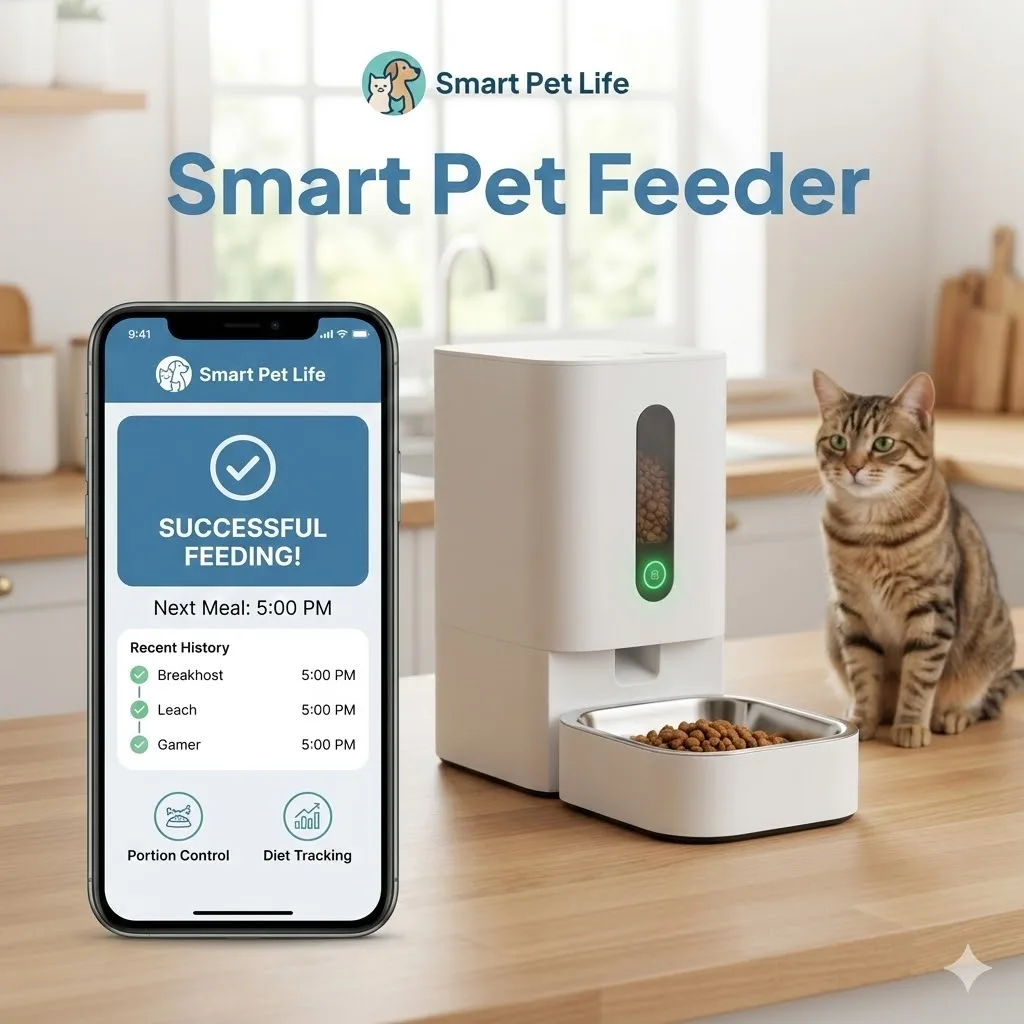
Cloud Reliability: Real-time app notifications for successful feedings.
Family Sharing: Easily share the smart life pet feeder setup with multiple family members.
Automation: Link feeding times to other triggers (e.g., “When I arrive home, dispense a treat”).
Cons:
WiFi Dependency: Requires a strong signal at the feeder’s location.
Server Maintenance: Occasional cloud lag during peak hours can delay manual “Instant Feed” commands.
6. Troubleshooting Common Connection Errors
If your smart life pet feeder setup fails at 99%, try these advanced fixes:
MAC Filtering: Check if your router is blocking new MAC addresses.
IP Conflict: Assign a static IP to the feeder in your router settings.
Distance: Move the feeder within 5 feet of the router just for the smart life pet feeder setup phase, then move it back.
Security Protocol: Ensure your WiFi is using WPA2-PSK (AES). Older or extremely new WPA3 protocols can sometimes interfere with smart life pet feeder setup.
Properly connected devices allow you to accurately track cat calorie intake for weight loss and monitor for signs of pet arthritis through appetite changes.
7. FAQ: Smart Life Pet Feeder Setup
Q: Can I use the Tuya Smart app instead?
A: Yes. Tuya and Smart Life are identical in terms of smart life pet feeder setup protocols. You can use either, but do not attempt to pair with both simultaneously.
Q: Why does my feeder keep going “Offline”?
A: This is usually due to poor signal strength or a router’s “Lease Time” expiring. Ensure your feeder is within 20 feet of the nearest access point.
Q: Does it support 5GHz WiFi?
A: Most 2026 models still prioritize 2.4GHz for its superior range. Always check your specific manual during the smart life pet feeder setup.
Final Thoughts
A smooth smart life pet feeder setup is the gateway to stress-free pet parenting. By understanding the nuances of WiFi bands and pairing modes, you ensure a rock-solid connection that supports your pet’s long-term health. Once paired, you can enjoy the peace of mind that comes with proper pet hydration reminders and precision meal delivery.
(Note: For more technical support on IoT devices, visit the Tuya Developer Center for official documentation.)